How to Make an Old iPad Feel Fast Again
An iPad that has gone slow is rarely past its usefulness. It is usually one settings change and one cleanup away from feeling new.
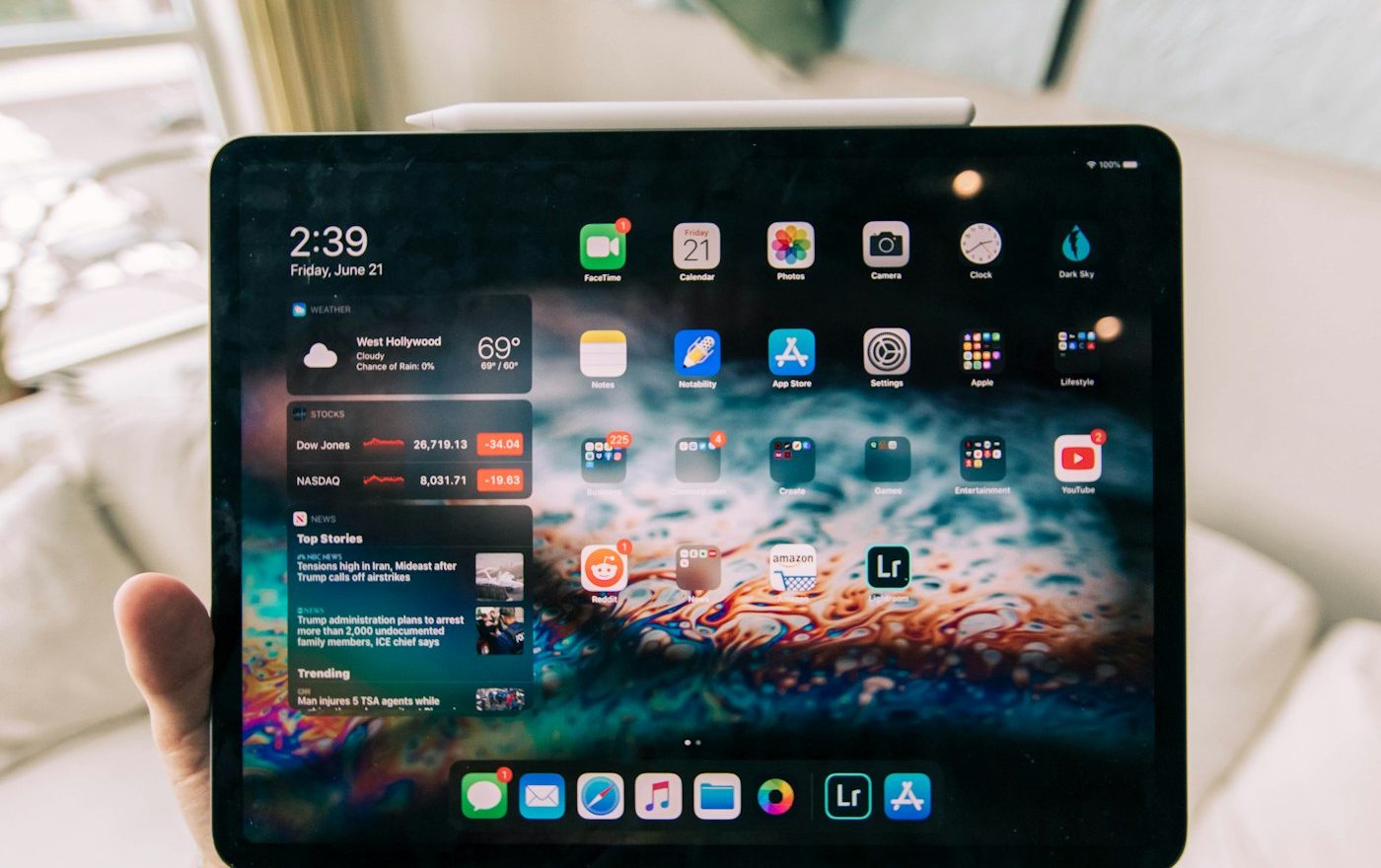
We have an iPad in the kitchen that is genuinely old. It came out in 2017. By the standards of consumer technology, it should be in a drawer or at the recycling centre. Instead, it sits on the worktop, reads recipes, runs the smart home app, and shows the weather. It does all of this perfectly well, because I spent forty minutes a few years ago doing the maintenance that nobody usually does on iPads.
Older iPads have a hidden advantage: they are not phones, so they typically run cooler, the batteries last longer, and the use cases are narrower. The downside is that we tend to ignore them. They sit on the sofa or the bedside table for months at a time without updates, without restarts, without cleaning of accumulated cruft. When we finally pick them up and they feel slow, we conclude they are past it. Usually they are not.
Restart it (properly)
Most iPads have not been restarted in months. They have been put to sleep and woken up many times, but rarely restarted entirely. A proper restart clears memory, releases stuck resources, and resets the small background processes that have accumulated.
To do a full restart on most iPads: hold the top button and either volume button until the slide-to-power-off appears. Slide to power off. Wait 30 seconds. Hold the top button to power back on.
You will be amazed how often this single step transforms a sluggish iPad into one that feels years younger. Make it a habit; restart your iPad monthly.
Check the iPad OS version
Apple typically supports each iPad for five to seven years of major OS updates. If your iPad is within that window and is not on the latest supported version, install the updates. Some updates are specifically optimised for older devices and can dramatically improve performance.
Settings > General > Software Update. The update may take a half hour, so plug in the iPad and let it run while you do something else.
If your iPad is so old that it no longer receives new iPadOS updates, you are stuck on the last supported version. That is fine for most uses; the iPad will keep working. Just be aware that some newer apps may eventually require an OS version you cannot install.
Clear out the storage
Most iPads end up with apps the user has never opened, photos that are duplicates of cloud-backed versions, downloaded videos that no one watched, books read once and forgotten. Storage at 90% full slows everything down.
Settings > General > iPad Storage. Look at the list of apps sorted by size. Anything you have not opened in three months is a candidate for deletion. The iPad’s “Offload Unused Apps” option (in the same menu) removes the app code but keeps the documents and data; reinstalling later restores everything.
For photos: enable iCloud Photos if you have not, which uploads everything to your Apple ID and removes the local copies (keeping low-resolution previews). This often frees up many gigabytes.
Aim for at least 20% free storage. The iPad needs this for various background operations and performs notably worse when full.
Disable unnecessary background activity
Many apps update content in the background even when you are not using them. This is useful for things like email and weather but not for most apps.
Settings > General > Background App Refresh. Turn it off for apps you do not need to be current with at all times. Leave it on for messaging, email, weather, and anything you care about being up to date.
The performance difference is subtle but cumulative; older iPads with many background apps running can feel noticeably slower than the same iPad with background refresh restricted.
Reduce visual effects
iPadOS has rich animations: smooth transitions between apps, swooping zooms when launching things, parallax effects on the home screen. On older iPads, these can feel sluggish.
Settings > Accessibility > Motion > Reduce Motion. Toggle this on. Animations are replaced with simple cross-fades, which run much faster on older hardware. The iPad will feel noticeably snappier.
Some users find the absence of animations jarring; others welcome it. Try it for a day before judging.
Check the battery
iPads with degraded batteries can throttle performance to preserve charge. Older iPads in particular often have batteries near the end of their usable life.
Settings > Battery > Battery Health (on supported iPads; the option may not exist on older models). If maximum capacity is below 80%, battery replacement may restore performance as well as runtime. Apple service or a third-party repair shop can replace iPad batteries for between sixty and a hundred and twenty pounds depending on the model.
For older iPads without battery health reporting, the symptom of a tired battery is rapid percentage drops and the iPad lasting much less time than it used to.
Use the iPad for what suits it
An old iPad that struggles with the latest games or video editing apps may still be perfectly capable as a reading device, kitchen recipe display, kids’ video player, or backup browser. Match the use case to the hardware.
Our 2017 iPad is hopeless for the latest 3D games. It is excellent for reading the BBC, watching iPlayer, looking up recipes, and running the smart home dashboard. Knowing what an old iPad can still do well is more useful than trying to make it pretend it is a new one.
What to do if you have tried all this
If you have restarted, updated, cleaned storage, disabled background refresh, and the iPad still feels unusable, the nuclear option is a factory reset.
Back up everything first (iCloud or to your Mac/PC). Then Settings > General > Transfer or Reset iPad > Erase All Content and Settings. This takes the iPad back to factory state.
After erasing, restore from backup. Or, for the maximum speed benefit, set up as a new iPad and install only the apps you actually use. The fresh setup typically feels dramatically faster than the cluttered original.
For more on extending the life of mobile devices, see our pieces on laptop battery care and quiet phone maintenance.
When it really is past saving
iPads more than seven or eight years old eventually reach the point where they no longer get OS updates, no longer run important apps, and have batteries that need replacement to be useful at all. At that stage, repurposing as a dedicated single-app device (a digital photo frame, a Spotify control panel, a wall-mounted dashboard) can still extract years of value.
Or just recycle responsibly. Apple’s trade-in programme often gives you something back even for very old iPads, and many local councils accept tablets at recycling centres. Do not bin them; the batteries are hazardous waste.
For a related angle, our piece on A Step-by-Step Guide to Improving Phone Battery Health Habits covers a closely connected problem.
For a related angle, our piece on How to Properly Store Devices You’re Not Using covers a closely connected problem.
Frequently Asked Questions
If your iPad is more than seven years old, no longer gets iPadOS updates, has a battery that needs replacement (cost approaches replacement value), and struggles even with simple apps, it may be near the end. The honest test: after doing all the maintenance above, is it acceptable for what you need? If yes, keep using it. If no, it has reached the end. Most iPads under five or six years old still have considerable life with proper maintenance.
For apps you have already installed, sometimes yes; older versions of the app may keep working until the developer pushes a forced update. For new apps you want to install fresh, no; the App Store will refuse to install incompatible apps. You may be able to find the last compatible version of some apps in your purchase history and re-download that version. This is hit and miss.
It can, particularly if the battery is significantly degraded. Older iPads (and iPhones) throttle their performance when the battery cannot deliver enough current under peak demand, which a degraded battery cannot. Replacement restores full performance capability. Whether this is worth the cost depends on the iPad: for a high-end iPad Pro, often yes; for a basic iPad that is approaching the end of OS support, probably not.
No. Jailbreaking voids any remaining warranty, complicates updates, and modern jailbreaks for older iOS versions often have security vulnerabilities. The performance improvements from jailbreaking are mostly cosmetic. Stick with the supported maintenance approaches; they deliver most of the realistic benefit without the risks.
A dedicated single-purpose device, often mounted somewhere. Examples: a kitchen recipe display, a smart home control panel, a digital photo frame, a Spotify or radio control, a child's reading device. Apps like dakboard or charts.com can turn an old iPad into a wall-mounted dashboard. The narrower the use case, the less the iPad's age matters. Many "ancient" iPads still work brilliantly for one specific job.

Smit Sharma
Smit Sharma writes and edits Repair Habit. He is not a licensed technician of anything. What he knows about repair he picked up the ordinary way: watching his father fix things around the flat rather than throw them away, spending two summers as an apprentice in a small electronics shop, and, once he had his own place, running through the mistakes himself on his own washing machine, kettle, chairs, and car. He is a working parent, a slow buyer of new things, and a slightly obsessive maintainer of the ones he already owns. He does not believe repairing your dishwasher makes you a better person. He believes it is often the cheapest and quietest response to a small problem, which is roughly all the philosophy this site carries.
You may also like
How to Fix a Charging Port That Won’t Hold a Cable
A loose charging port is almost never broken. It is full of lint. The fix is a wooden…

A Guide to Decluttering and Speeding Up a Slow PC
A slow PC is rarely past its useful life. Six checks usually bring it back, and none require…

Why Your Earbuds Sound Worse (and How to Bring Them Back)
Earbuds sound quieter and muddier over time. Three small things explain almost all of it.