The Quiet Maintenance Routine Every Phone Owner Should Have
Phones are not maintained the way laptops or cars are. They should be. Twenty minutes a quarter is enough.
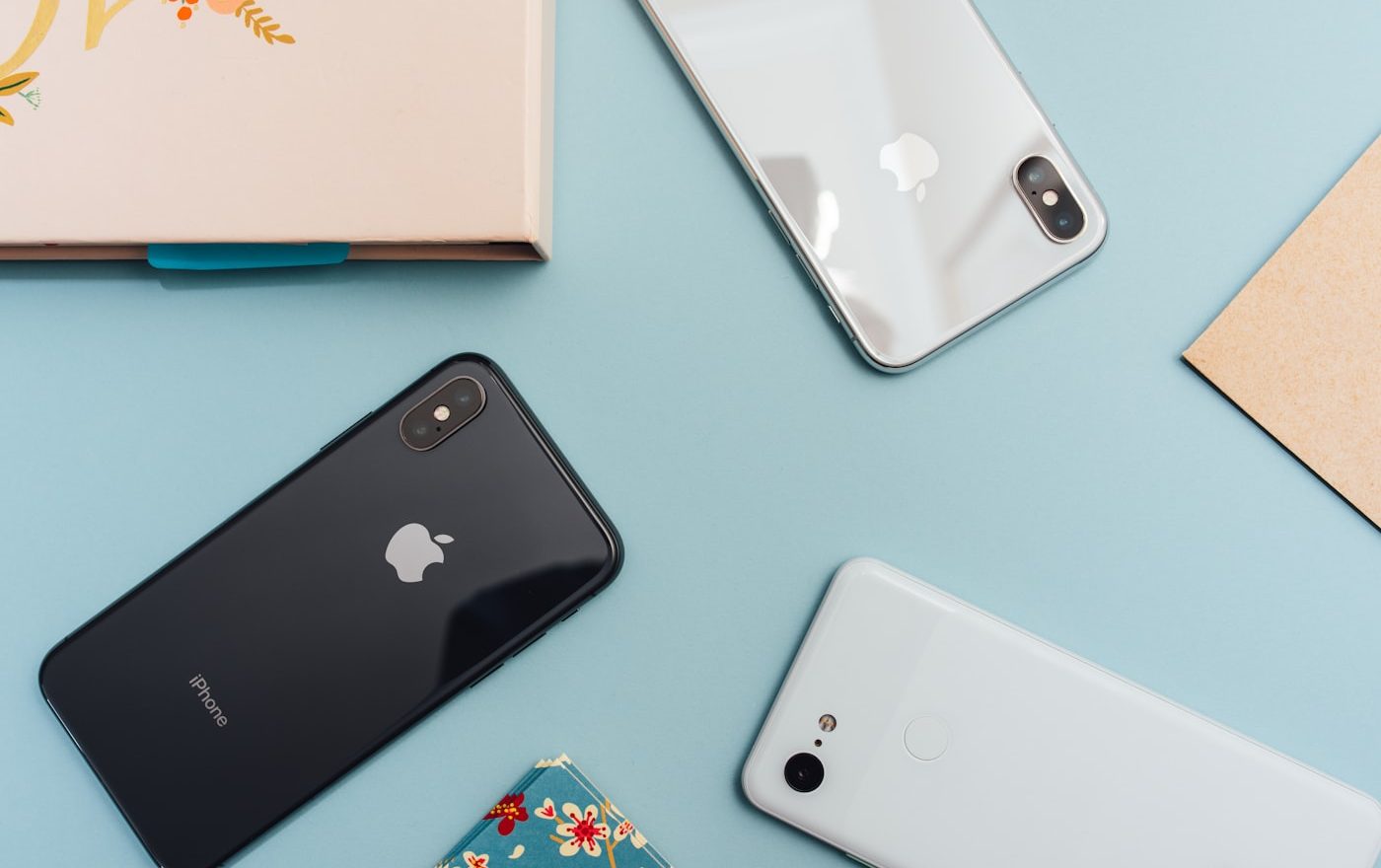
The smartphone is the most expensive piece of technology most of us own per gram, and the one we maintain the least. We buy ten-pound cases to protect the screen. We replace it every three to four years when it feels slow. Between purchase and replacement, almost nobody pays it any maintenance attention at all.
This is a strange situation. Cars have service intervals. Boilers have annual checks. Computers have antivirus and cleanup tools. Phones, for most people, just exist until they break or feel slow enough to replace.
A small, regular maintenance routine extends phone life substantially, prevents the slow degradation that makes people think they need an upgrade, and protects the data on the device. Here is the routine I have settled on. Twenty minutes, every three months, at most. Often less.
Step one: physical cleaning
Phones live in our hands, our pockets, our bags. They accumulate skin oils, dust, lint, and the occasional crumb. Over months, this build-up affects both appearance and function.
Wipe the screen and back with a slightly damp microfibre cloth. Plain water is fine. Avoid alcohol-based screen cleaners, which can damage the oleophobic coating that makes the screen resist fingerprints.
For the speaker grilles, the charging port, and the headphone jack (if your phone still has one), use a wooden toothpick or a soft brush to gently dislodge lint. Be careful not to bend or damage the inside of the ports.
For phones with cases, remove the case once a quarter and clean both the phone and the inside of the case. The case interior is often surprisingly grimy; cleaning it improves grip and reduces accumulated debris.
Step two: software housekeeping
Restart the phone. A proper restart, not just a sleep-wake. This clears memory and resets background processes.
Check for OS updates. Install any available. Software updates often include performance improvements and security patches, both of which matter.
Check for app updates. Most phones do this automatically, but verify the auto-update setting is on. Outdated apps can be slower, less secure, and occasionally incompatible with newer OS versions.
Step three: storage management
Open the storage settings (iPhone: Settings > General > iPhone Storage; Android: varies, often Settings > Storage). Look at how full the phone is. If you are above 85% full, take action.
Common cleanup wins:
- Delete apps you have not opened in three months
- Clear cached data from social media, browsers, and messaging apps
- Move photos and videos to cloud storage or to your computer; delete the local copies if needed
- Delete downloaded podcast episodes you have listened to
- Clear text message threads with large attached files
Aim for at least 20% free space.
Step four: privacy and permissions check
Apps accumulate permissions over time, often more than they need. A flashlight app does not need access to your contacts. A weather app does not need access to your microphone.
Go through the location, microphone, camera, contacts, and photos permission lists. Revoke anything that does not need access. The phone will ask again if an app needs it for a legitimate reason; until then, less permission is better for both privacy and battery.
iPhone: Settings > Privacy & Security.
Android: Settings > Apps > Permission manager.
Step five: backup
If something happens to your phone, do you have a current backup of everything that matters? If not, fix that now.
iPhone: iCloud Backup (Settings > [Your Name] > iCloud > iCloud Backup; turn on, then tap Back Up Now).
Android: varies by manufacturer. Google has automatic backup for most data through Google One. Samsung has its own backup system. Verify backups are enabled and have run recently.
For photos specifically, double-check that they are being backed up automatically to a cloud service. Phone loss happens; cloud-backed photos survive.
Step six: charging health check
Check your battery health (iPhone: Settings > Battery > Battery Health & Charging. Android: varies by manufacturer).
If maximum capacity is below 80%, battery replacement may be worth considering. A phone with a healthy battery feels significantly better than the same phone with a tired one.
While you are in battery settings, enable optimised charging if your phone supports it. This extends battery longevity dramatically with no daily inconvenience.
Step seven: review what you actually use
Open the screen time settings (iPhone: Settings > Screen Time; Android: Settings > Digital Wellbeing). Look at which apps you actually use, and how much. Often surprising patterns emerge: apps you swore you would use frequently but rarely open, apps that consume more of your day than you realised.
This is more about life management than phone management, but it overlaps. Removing the apps you do not actually use frees space, simplifies the home screen, and reduces background activity.
Why a routine matters
Most of these tasks are tiny individually. Done routinely, they keep the phone running well for years. Skipped indefinitely, the cumulative neglect leads to a phone that feels slow, fills up unexpectedly, has security holes, and accumulates apps and permissions that should have been pruned long ago.
The pattern parallels what we see with home maintenance, car care, appliance maintenance: small, regular attention prevents the larger problems that force replacement before it is needed.
For broader device habits, see our pieces on laptop battery care and common device mistakes.
When to consider replacement
Even with diligent maintenance, phones eventually reach the point where replacement makes sense: when the battery cannot be replaced or repaired affordably, when the OS no longer gets updates, when essential apps no longer support the phone, or when physical damage accumulates beyond reasonable repair.
For most users, a well-maintained phone reaches this point in five to seven years, not the two to three years that “phone upgrade cycles” suggest. The savings over a decade of phone ownership add up to thousands of pounds.
The quarterly check-in that takes 20 minutes
I run through this list on the same Sunday every three months, while doing other small admin tasks. Wipe the phone down. Restart it properly. Run any pending updates. Look at storage and clear out anything obvious. Review permissions and turn off anything I do not need. Verify the backup is current. Check the battery health number against what it was last quarter. That is the entire routine. Twenty minutes, four times a year. The phone always feels current rather than slowly drifting toward needing replacement.
For a related angle, our piece on The Calm Way to Recover From a Phone Water Drop covers a closely connected problem.
For a related angle, our piece on How to Properly Store Devices You’re Not Using covers a closely connected problem.
Frequently Asked Questions
A daily wipe of the screen with a soft cloth or your sleeve is fine. A proper clean with a damp microfibre cloth, weekly or fortnightly. A full quarterly clean including case removal, port inspection, and grille cleaning. Phones that live in pockets accumulate lint faster than phones in bags or on desks; adjust frequency to your usage patterns.
It is improving. Google Pixel devices now receive seven years of updates. Samsung commits to seven years for newer flagship models. Many other Android manufacturers still cut off updates after three to five years. If long-term update support matters to you, factor it into your next phone purchase. iPhones consistently receive about six years of major OS updates; the newer Google Pixel and Samsung flagships are now comparable.
Mostly no. Most "cleaner" apps on Android are aggressive in their advertising and provide little benefit beyond what built-in tools do. Some are actively harmful, containing intrusive ads or even malware. Use the built-in storage and battery management tools first. If you need additional functionality (specific file management, for example), choose well-reviewed apps from reputable developers.
With good maintenance and a battery replacement at year 3-4, most premium smartphones can comfortably last 6-7 years. Budget phones often have shorter useful lives due to slower processors that struggle with newer software, and shorter manufacturer support. The single biggest factor in phone longevity is whether you replace the battery when it ages. A tired battery is the most common reason for "the phone feels too slow"; a fresh battery in an otherwise capable phone restores most of its original snappiness.
iCloud is a backup. If it is enabled and working, you have a backup. Verify it: Settings > [Your Name] > iCloud > iCloud Backup, and check the "Last Successful Backup" date. If it is more than a week old, something is wrong. The most common issues are iCloud storage being full or backups disabled inadvertently. Free 5GB iCloud is usually not enough for a phone with photos; the smallest paid tier (a few pounds a month) usually is.

Smit Sharma
Smit Sharma writes and edits Repair Habit. He is not a licensed technician of anything. What he knows about repair he picked up the ordinary way: watching his father fix things around the flat rather than throw them away, spending two summers as an apprentice in a small electronics shop, and, once he had his own place, running through the mistakes himself on his own washing machine, kettle, chairs, and car. He is a working parent, a slow buyer of new things, and a slightly obsessive maintainer of the ones he already owns. He does not believe repairing your dishwasher makes you a better person. He believes it is often the cheapest and quietest response to a small problem, which is roughly all the philosophy this site carries.
You may also like
How to Make an Old iPad Feel Fast Again
An iPad that has gone slow is rarely past its usefulness. It is usually one settings change and…
Common Device Mistakes That Shorten Lifespan
Phones, laptops, and consoles do not really wear out. They get worn out by avoidable habits.
A Step-by-Step Guide to Improving Phone Battery Health Habits
Battery health is a downhill slide unless you change habits. Here is the order to change them in.